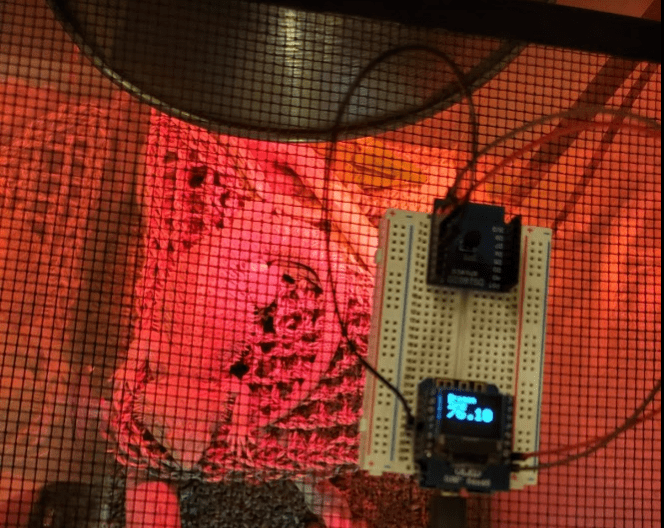
I had a few use cases for using some ESP8266 modules I had been let from Richard Hornbaker, who is creating some cool stuff. One use was a garage door sensor to ensure my garage is closed in the evening, the other was a temperature sensor for my bearded dragons cage. A very nice aspect of the esp8266 was its native support for networking coupled with extremely low power, making it ideal to be connected to a battery pack when we take him out for some sun. Specifically for this, we had made a mobile box so we could take him outside in spring time to “hang out”. As we did this, I became aware of the risk of me getting distracted with work and the risk of ambient heat cooking the dragon.
A fun project became figuring out how to connect this with both IFTTT (easy with standard HTTP Posts) and Webex Teams (a bit more challenging with TLS considerations). After working through this making my HomeBot monitor my dragon cage (and future garage sensors), will be fairly straightforward.
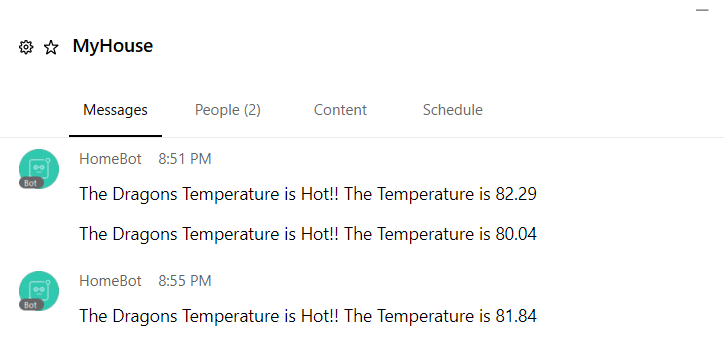
The overall structure is fairly simple,
- Have Webex Teams,
- Setup a bot integration
- get your api key
- Create a room
- Get your room id
- Setup ESP8266 and sensors.
- Use the Webex Teams function below to post results from your sensors, into a webex teams room.
The schematic for my setup is very simple, my 64×48 OLED shield is stacked on the ESP8266, and the DS18B20 Shield is plugged into pin D5. Stacking it w/ the OLED doesn’t work in my setup because of pin overlap.
Note i put the IFTTT component and webex teams component into functions to make it easy to remove if you just want to use one. IFTTT examples were easy to find for esp8266 but the TLS enabled Webex Teams integration took a bit of work to compile.
Code is below
/*
 * https post portion: Highly modified from  Original taken from circuits4you.com */

#include <ESP8266WiFi.h>
// For Temperature shield
#include <OneWire.h>
#include <DallasTemperature.h>
// For OLED Shiend
#include <SPI.h>
#include <Wire.h>
#include <Adafruit_GFX.h>
#include <Adafruit_SSD1306.h>


const char* ssid = "Your Wifi SSID";
const char* password = "Your Wifi Password";
const char* host = "maker.ifttt.com";
const char* apiKey = "Your API Key for IFTTT";
String teamsRoom = "Your Teams Room ID";
String teamsAPIKey = "Your API Key";
String teamsHost = "api.ciscospark.com";
const int httpsPort = 443;  //HTTPS= 443 and HTTP = 80

// this fingerprint taken from api.ciscospark.com certificate as of 2020 06 08
const char fingerprint[] PROGMEM = "4c ba 93 17 2d f3 ca fa 67 1a 10 09 61 7a d9 68 45 93 1a bf";


// Map arduino pins in software to ESP8266 Wemos D1 Mini like boards Richard gave me. the name of the pin is the port on the board.
//connected as lolin wemos d1 mini
// initial config based on online graphic


int pinD0 = 16;
int pinD1 = 5;
int pinD2 = 4;
int pinD3 = 0;
//int pinD4 = "who knows";
int pinD5 = 14;
int pinD6 = 12;
int pinD7 = 13;
int pinD8 = 15;
int pinTX = 1;
int pinRX = 3;


volatile int state = false;
volatile int flag = false;
String event_trigger;


unsigned long previousMillis = 0;        // will store last time
unsigned long previous5mMillis = 0;       // will store last time for 5m post interval
const unsigned long interval = 60UL*60UL*1000UL;   // Check state every hour
const unsigned long fiveminterval = 5UL*60UL*1000UL;   // interval to stagger posts to every 5m
const unsigned long oneminterval = 60UL*1000UL;   // interval to stagger posts to every 5m
//Setup sensor (TEMP)
// Data wire is connteced to pin 5
#define ONE_WIRE_BUS pinD5
// Setup a oneWire instance to communicate with any OneWire devices
OneWire oneWire(ONE_WIRE_BUS);
// Pass our oneWire reference to Dallas Temperature sensor
DallasTemperature DS18B20(&oneWire);


//Setup OLED Display
// SCL GPIO5
// SDA GPIO4
#define OLED_RESET 0 // GPIO0
Adafruit_SSD1306 display(OLED_RESET);

#define NUMFLAKES 10
#define XPOS 0
#define YPOS 1
#define DELTAY 2
#define LOGO16_GLCD_HEIGHT 16
#define LOGO16_GLCD_WIDTH  16


void setup_wifi() {
  delay(10);
  Serial.print("Connecting to WLAN");
  WiFi.mode(WIFI_STA);
  WiFi.begin(ssid, password);
    while (WiFi.status() != WL_CONNECTED) {
      delay(500);
      Serial.print(".");
    }
  Serial.print("Connected to WLAN");
  Serial.println("");
  Serial.println("WiFi connected");
  Serial.println("IP address: ");
  Serial.println(WiFi.localIP());
}


// =========================================================================================================================
// This sets up the sensors and oled
//
//

void setup() {

    Serial.begin(115200);
    delay(100);
    Serial.println();


    //// OLED Display tests

  // by default, we'll generate the high voltage from the 3.3v line internally! (neat!)
  display.begin(SSD1306_SWITCHCAPVCC, 0x3C);  // initialize with the I2C addr 0x3C (for the 64x48)
  // init done

  display.display();
  delay(2000);

  // Clear the buffer.
  display.clearDisplay();

  // text display tests
  display.setTextSize(1);
  display.setTextColor(WHITE);
  display.setCursor(0,0);
  display.println("Hello, world!");
  display.display();
  delay(2000);
  display.clearDisplay();
      Serial.println("Preparing the Dragon temperature Status Monitor project...");
    setup_wifi();
    DS18B20.begin();


}


// =========================================================================================================================
// This posts a message to IFTTT
//
//

void PostIFTTT(String HttpBody) {


            Serial.print("connecting to ");
          Serial.println(host);

          WiFiClient client;
          const int httpPort = 80;
          if (!client.connect(host, httpPort)) {
            Serial.println("connection failed");
            return;
          }

          String url = "/trigger/dragon_temp/with/key/";
          url += apiKey;
           int DataLen=HttpBody.length();
          Serial.print("Requesting URL: ");
          Serial.println(url);
          client.print(String("POST ") + url + " HTTP/1.1\r\n" +
                       "Host: " + host + "\r\n" +
                       "Content-Type: application/x-www-form-urlencoded\r\n" +
                       "Content-Length: "+DataLen + "\r\n\r\n" +
                       HttpBody);
          Serial.print(String("POST ") + url + " HTTP/1.1\r\n" +
                       "Host: " + host + "\r\n" +
                       "Content-Type: application/x-www-form-urlencoded\r\n" +
                       "Content-Length: "+DataLen +"\r\n\r\n" +
                       HttpBody);
           unsigned long timeout = millis();
           while (client.available() == 0) {
             if (millis() - timeout > 5000) {
               Serial.println(">>> Client Timeout !");
               client.stop();
               delay(5000);
                return;
    }
  }

        // Read all the lines of the reply from server and print them to Serial
        Serial.println("receiving from remote server");
        while (client.available()) {
          char ch = static_cast<char>(client.read());
          Serial.print(ch);
        }


      }


// =========================================================================================================================
// This posts a message to webex teams
//
//


void teamsPost(String TeamsText) {
  // This Function posts a message to webex teams

  Serial.println("The teams post function has run");
  Serial.println(TeamsText);


  WiFiClientSecure httpsClient;    //Declare object of class WiFiClient

  Serial.println(teamsHost);
  Serial.printf("Using fingerprint '%s'\n", fingerprint);

  httpsClient.setFingerprint(fingerprint);
  httpsClient.setTimeout(15000); // 15 Seconds
  delay(1000);

  Serial.print("HTTPS Connecting");
  int r=0; //retry counter
  while((!httpsClient.connect(teamsHost, httpsPort)) && (r < 30)){
      delay(100);
      Serial.print(".");
      r++;
  }
  if(r==30) {
    Serial.println("Connection failed");
  }
  else {
    Serial.println("Connected to web");
  }

  String HttpBody, Link;


  //POST Data
  Link = "/v1/messages";
  HttpBody = "roomId="+teamsRoom + "&text="+TeamsText;
  int DataLen=HttpBody.length();
  Serial.println("data is " + HttpBody + " length is " + DataLen);

  Serial.print("requesting URL: ");
  Serial.println(teamsHost);
  Serial.println("Teams API KEY " + teamsAPIKey);


  Serial.print(String("POST ") + Link + " HTTP/1.1\r\n" +
               "Host: " + teamsHost + "\r\n" +
               "Authorization: Bearer " + teamsAPIKey +  "\r\n" +
               "Content-Type: application/x-www-form-urlencoded"+ "\r\n" +

               "Content-Length:"+ DataLen + "\r\n\r\n" +
               HttpBody + "\r\n" +
               "Connection: close\r\n\r\n");


  httpsClient.print(String("POST ") + Link + " HTTP/1.1\r\n" +
               "Host: " + teamsHost + "\r\n" +
               "Authorization: Bearer " + teamsAPIKey +  "\r\n" +
               "Content-Type: application/x-www-form-urlencoded"+ "\r\n" +

               "Content-Length:"+ DataLen + "\r\n\r\n" +
               HttpBody + "\r\n" +
               "Connection: close\r\n\r\n");

  Serial.println("request sent");
      Serial.println("reply was:");
      Serial.println("==========");

  while (httpsClient.connected()) {
    String line = httpsClient.readStringUntil('\n');


    if (line == "0\r") {
      Serial.println("headers received");
      break;


    }

    Serial.println(line);
  }


  Serial.println("==========");
  Serial.println("closing connection");
}


// =========================================================================================================================
// This is the main body of the program
//
//
void loop() {

  DS18B20.requestTemperatures();
  float tempC = DS18B20.getTempCByIndex(0);
  float tempF = (tempC * 9.0)/ 5.0 + 32.0;
  float temperature = tempF;
  Serial.println();
  Serial.println("New temperature:"+String(String(tempF).c_str()) + " Degrees Farenheit");

  unsigned long currentMillis = millis();


  display.clearDisplay();
  display.setTextSize(1);
  display.setCursor(0, 0);
  display.setTextColor(WHITE);

  display.println("Dragon");
  display.println("Temp");
  display.setTextSize(2);
  display.println(String(String(tempF).c_str()));
  display.display();

 if (tempF >= 100){


     flag=true;

     temperature = tempF;
     event_trigger = "temperature";

 }


// Now, if the flag = true, we send an alert.

  if (flag==true){
          flag=false;
           Serial.println("threshold breach");
          String HttpBodyIFTTT = "value1="+String(temperature) + "&value2="+String(event_trigger);
          PostIFTTT(HttpBodyIFTTT);

          teamsPost("The Dragons Temperature is Hot!! The Temperature is "+String(temperature));


      delay(10);
  }
    delay(10000);   // we slow it down, basically check every 10 seconds.
}

 Strongedge.io